Viewings
In short
You request a viewing by choosing up to 3 days that suit you. Your agent confirms the date and the time. On the Viewings page, you see all your viewings.
Checked on
Request a viewing
Section titled “Request a viewing”- Open a property that you are interested in.
- Press Request a viewing. It is under Interested.
- Choose up to 3 days that suit you.
- Press Send request.
Your agent contacts you to confirm the date and the time. You can also request several properties at once. Press Viewings in the menu and then Request a viewing. Under Which properties?, choose the properties, choose the days and press Send.
See your viewings
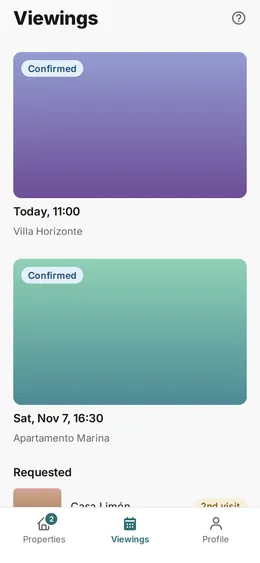
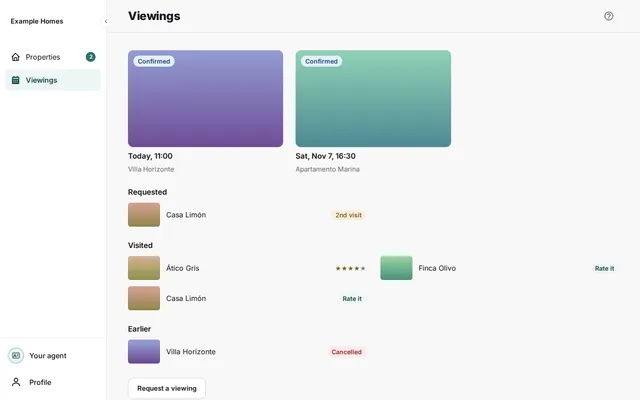
Section titled “See your viewings”Press Viewings in the menu. The page has these parts.
- At the top are the confirmed viewings as large cards, with the day and the hour.
- Requested: viewings that your agent still has to confirm.
- Visited: viewings that are behind you. Here you give a score with Rate it.
- Earlier: viewings that were cancelled or declined.
Open a viewing
Section titled “Open a viewing”Press a viewing to see the details. Depending on the viewing, you see these buttons.
- Start route: opens the route to the property.
- Add to calendar: puts the viewing in your calendar.
- Mark as visited: marks the viewing as visited.
- Cancel viewing: cancels the viewing.
Cancel a viewing
Section titled “Cancel a viewing”- Open the viewing.
- Press Cancel viewing. If you do not see this button, press More first.
- Press Yes, cancel. If you want to keep the viewing, press No, keep it.
Your agent gets a message about the cancellation at once.