Notes
In short
For each property that you are interested in, you can write a note. You can also speak what you want to note.
Checked on
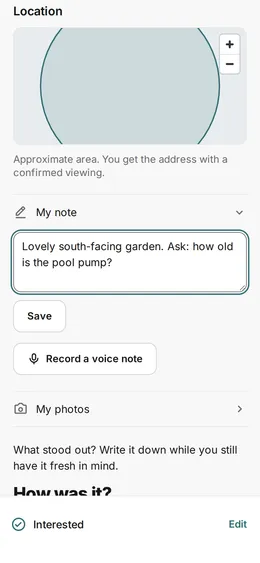
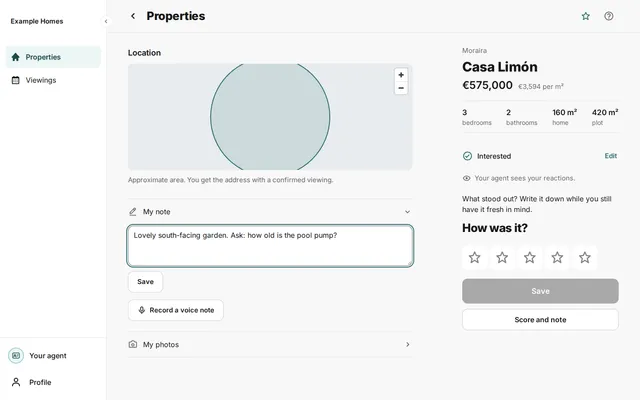
A note helps you remember what you want to ask and what you saw. Before the viewing, the box is called Questions for the viewing. After the viewing, the box is called My note.
Write a note
Section titled “Write a note”- Open the property.
- Scroll down to My note, or to Questions for the viewing if you have not been there yet. Press the box to open it.
- Type your text.
- Press Save. You see Note saved.
To remove the note, press Delete.
Make a voice note
Section titled “Make a voice note”- Press Record a voice note under the note box.
- Allow the microphone if your browser asks.
- Speak your note. Press Stop when you are done.
- The portal turns your words into text. Check the text under Your spoken note.
- Press Add to my note.
- Press Save. Only then is the text in your note.
If you cannot record, you see This browser cannot record. Then write your note with the keyboard.
Photos of a viewing
Section titled “Photos of a viewing”When your viewing has started, you see the box My photos under the note. Press My photos. Then press Take a photo and then Upload photo.