Looking at a property
In short
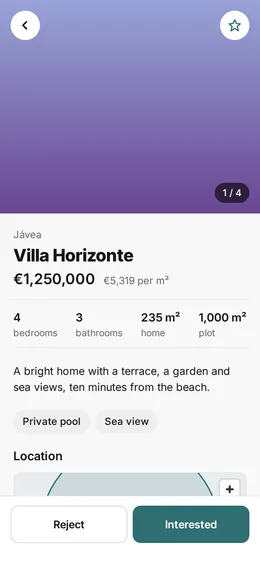
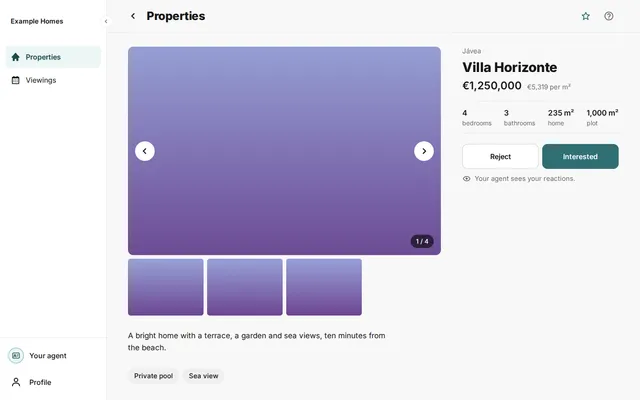
On the page of a property, you see the photos, the price, the details and a map of the area. You see the address only with a confirmed viewing.
Checked on
- Choose a property in the overview.
- Look at the photos. On a phone, swipe over the photo. On a computer, press the arrows. If the property has more than 5 photos, press All photos.
- Read the name, the town and the price. Under them are the number of bedrooms, the number of bathrooms, the home area and the plot area.
- Read the description. Under it are the highlights of the property, such as Private pool or Sea view.
- Scroll down to Location for the map.
- If you see Virtual tour, press it. The tour opens in a new tab.
The map
Section titled “The map”The map shows an approximate area. You get the address with a confirmed viewing. If your browser has no JavaScript, you see the text The map needs JavaScript.
Add it to your favourites
Section titled “Add it to your favourites”Press the star at the top right to add the property to your favourites. Press the star again to remove it. Your agent sees your reactions.
What you can do with a property is on the page Reacting to a property.