The overview
In short
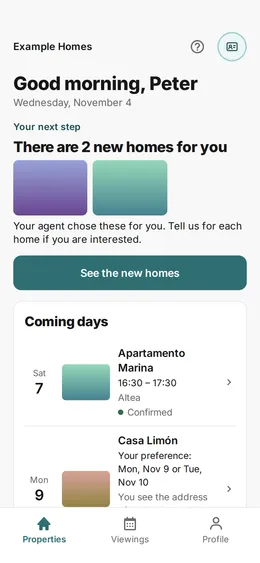
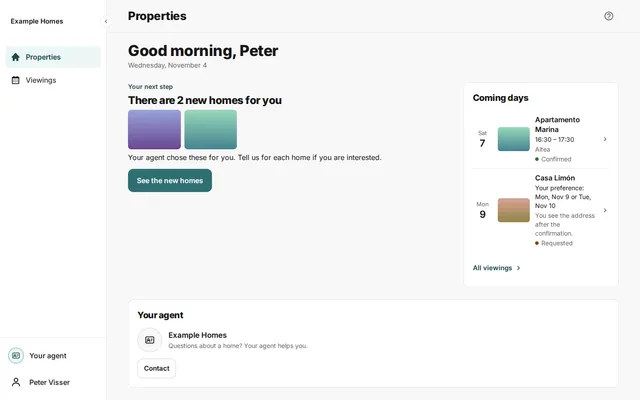
On the Properties page, you see your next step at the top. Under it, you see all your properties in groups. You open a property with a press on its card.
Checked on
The overview is the first page after you sign in. You always open it with Properties in the menu.
- Read Your next step at the top. It says what you can do now, for example See the new homes.
- Look under Coming days for your planned viewings. Press All viewings for the full list.
- Scroll down to the properties. Each property has a card with a photo, the name and the price.
- Press a card to open the property. On a large screen, a panel opens on the right. Press Full page there to see the whole property.
- Press the star on a card to add the property to your favourites. Press the star again to remove it.
The groups
Section titled “The groups”The properties are in three groups.
- Waiting for your reaction: properties that need your reaction.
- Interested: properties that you are interested in. Your favourites are at the top.
- Rejected: properties that you rejected. This group is closed. Press its title to open it. Press Restore to bring a property back.
View and order
Section titled “View and order”On a phone, you choose Cards, List or Map. On a computer, you choose Cards, Map or Table. The table shows your favourites with price, score and visit date. Use Score and Price to change the order of the cards.
Help and your agent
Section titled “Help and your agent”The question mark at the top right opens a short explanation of the page. Use Your agent to contact your agent. On a phone, this is the round icon at the top right. On a computer, it is at the bottom left of the menu.